Every multi-location marketing team knows this story. The campaign is approved, the artwork is perfect, and three weeks later a regional manager sends a photo of a store still showing last season’s poster. Another site printed it at the wrong size. A third never got the email.
In-store signage is where brand consistency breaks down, because the last step depends on dozens of busy people in dozens of places. Here is how to roll out posters and point-of-sale material across many locations with fewer mistakes, and how to know it actually happened.
Where signage rollouts go wrong
- Too many versions. Each location needs its own variant (address, local offer, QR code), so the design team ends up exporting forty files by hand.
- Wrong file, wrong place. A shared folder with forty near-identical files invites mistakes.
- No proof it went up. Head office cannot see which stores printed and displayed the material.
- Locked-in content. Once a QR code or link is printed, changing it means doing the whole rollout again.
1. Design once, with the variable parts in fixed places
Build one master design with clearly defined slots for whatever changes by location: the location name, a local detail, and the QR code. Everything else, logo, colours, headline and fonts, stays locked. This is what keeps brand consistency across locations. The less each site can change, the more consistent the result.
2. Generate the location versions, do not hand-make them
Hand-exporting a file per site is where errors creep in. Generate the versions from your location list instead, so each poster is built from the same template and filled with that location’s own details. The file name and the poster itself should both carry the location name, so anyone can check they have the right one.
3. Send each location only its own file
Do not send a link to a folder of forty files. Send each location manager the one poster that belongs to them, at the size they need, with a short instruction: where it goes and by when. One file per inbox removes most of the wrong-poster problems.
4. Make the QR code dynamic
If your signage carries a QR code, make it a dynamic one. You can then change where it points, a new offer, a new menu or a new review link, without reprinting. For a chain this is the difference between updating a link in a minute and repeating the whole rollout.
5. Use scans as proof the poster is up
A poster with its own QR code reports back. If a location shows zero scans a week after the rollout, the poster is almost certainly not on the wall. That gives regional managers a list to chase, without anyone visiting the stores.
How KudoTaps makes the posters for you
Poster generation is the part of KudoTaps Campaigns that most teams do not expect. When you create a campaign across your locations:
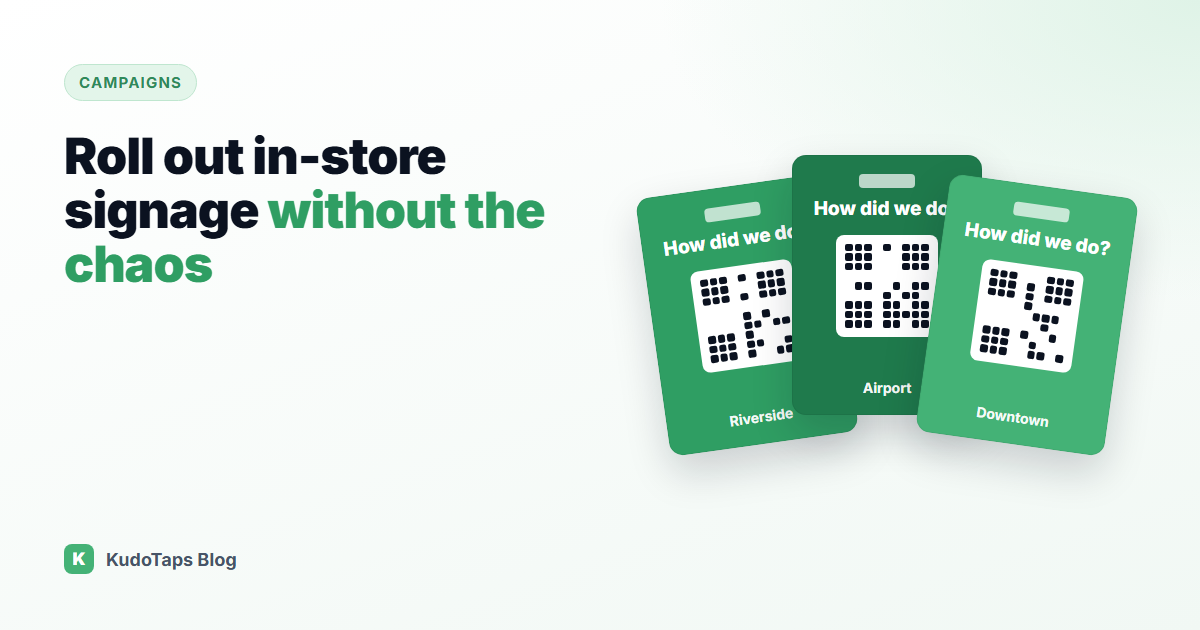
- Every location gets its own poster automatically, with its own QR code already on it, and the location name printed under the code if you want it.
- Your brand is applied. Your logo, your colours and one of three font styles. The headline and subtitle are written for what the code does, and you can change either one.
- Posters are emailed for you, each to that location’s own address, or all to one address if you prefer, with a note from you. Any location without an email is named before you send.
- Already have artwork? Upload your own design as a PNG or JPG. The system finds the QR code on it, or you mark the spot, and puts each location’s own code there, so every poster prints exactly as designed. Your design is saved as a template the whole team can reuse.
Prefer not to print at all? KudoTaps can print your posters and ship them to each location or to one address, priced per job. See the corporate account page for multi-location packages.
A simple rollout checklist
- Lock the master design and agree the variable slots.
- Check the location list: names, emails and any per-location links.
- Generate and preview one location before sending them all.
- Send each location its own poster with a display deadline.
- After a week, check scans by location and follow up on the zeros.
Frequently asked questions
How do I keep branding consistent across multiple locations?
Lock everything except a few defined slots, and generate each location’s version from one template rather than editing files by hand.
How do I know if a store put the poster up?
Give each location’s poster its own QR code. A location with no scans after a week has usually not displayed it.
Can I use my own poster design?
Yes. Upload your design as a PNG or JPG and KudoTaps places each location’s own code on it, either where the QR code already is or where you mark the spot.
What if the offer or link changes after printing?
Dynamic QR codes can be pointed somewhere new at any time, so the printed posters stay up.
A poster for every location, made and sent for you
Your brand, each location’s own code, emailed to every site in one step.